When talking about computers, people often immediately think of the CPU, RAM, or hard drive – components that are easy to see and understand. However, there is an even more important component that receives far less attention: the BIOS. Although small in size, the BIOS is the “first heart to beat” when a computer starts up. It is responsible for checking hardware, initializing devices, and handing over control to the operating system.
Understanding the BIOS helps us grasp how a computer “wakes up,” learn how to troubleshoot boot problems, update hardware, and optimize system performance. In this article, we will explore in detail what the BIOS is, how it works, how it differs from UEFI, and why knowledge of the BIOS remains important even in today’s modern technology era.
1. What Is the BIOS?
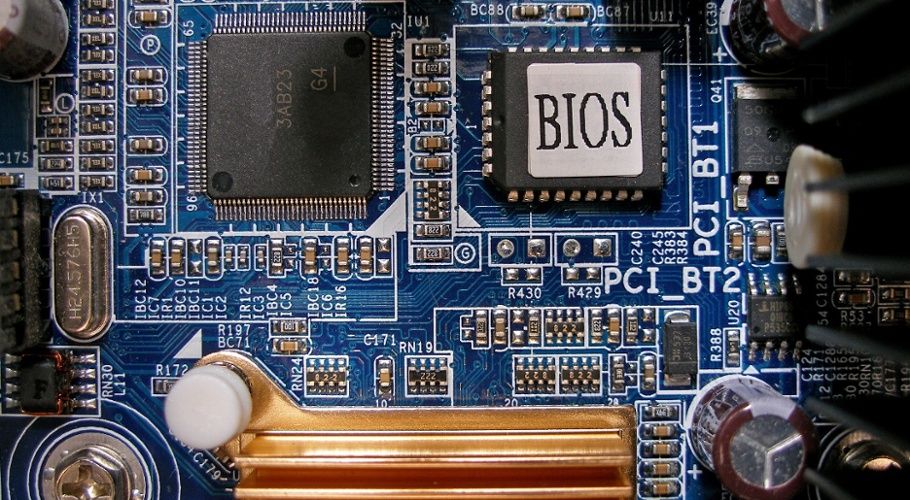
BIOS (Basic Input/Output System) is a type of firmware – that is, software permanently written to hardware – stored in a memory chip mounted directly on the motherboard (previously ROM, but today usually Flash ROM so it can be updated). When a computer is powered on, the BIOS is the first program to be activated. It is responsible for initializing hardware, performing basic checks (POST – Power-On Self Test), and then loading the operating system’s bootloader into RAM.
In other words, the BIOS is the first bridge between hardware and software, enabling all components of the computer to “wake up” and be ready to work together.
Some important points:
- Nature: The BIOS is a low-level firmware that operates independently of the operating system. Whether you use Windows, Linux, or macOS, the BIOS is still the “starter” for everything.
- History: The BIOS appeared with the IBM PC in the early 1980s and quickly became a common standard for personal computers. Later, manufacturers such as Phoenix, Award, and AMI developed their own BIOS versions, adding features and configuration interfaces.
- Location: The BIOS is stored in a small chip on the motherboard. Inside this chip are code routines that allow the CPU to communicate with devices such as the keyboard, disk drives, USB ports, or the graphics card, even before the operating system is loaded.
- Distinction: The BIOS differs from other firmware in that it is responsible for booting and setting up the initial operating environment for the system. Meanwhile, UEFI (Unified Extensible Firmware Interface) is its more modern successor—supporting large-capacity drives, graphical interfaces, and stronger security.
2. The Role of the BIOS in a Computer
The BIOS is regarded as the “starter” of the entire system – it acts as an intermediary between hardware and the operating system, ensuring that all components of the computer begin operating correctly. Specifically, the main functions of the BIOS include:
2.1 POST (Power-On Self-Test)
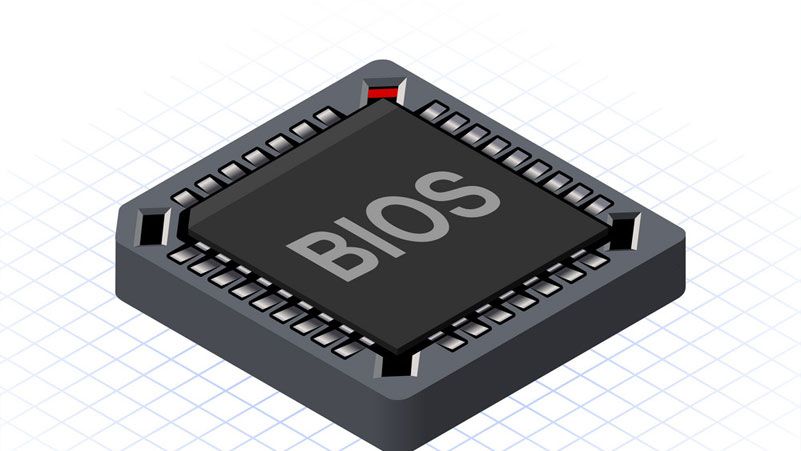
When the user presses the power button, the BIOS is the first component to run. It performs a series of automatic checks (POST) to ensure that critical components such as the CPU, RAM, graphics card, keyboard, and storage devices are functioning properly. If an error is detected, the BIOS will signal it through beep sounds or display codes. This is a crucial step for identifying hardware issues before the operating system is loaded.
2.2 Bootstrap Loader
After the POST is completed, the BIOS searches for a boot device (such as an SSD, HDD, or USB drive) based on the configured boot order. It reads the boot sector (MBR or GPT) of that device and then loads the boot program (bootloader) into RAM. This bootloader is responsible for continuing the operating system startup process, ensuring a smooth handover.
2.3 CMOS Setup Utility (BIOS Setup)
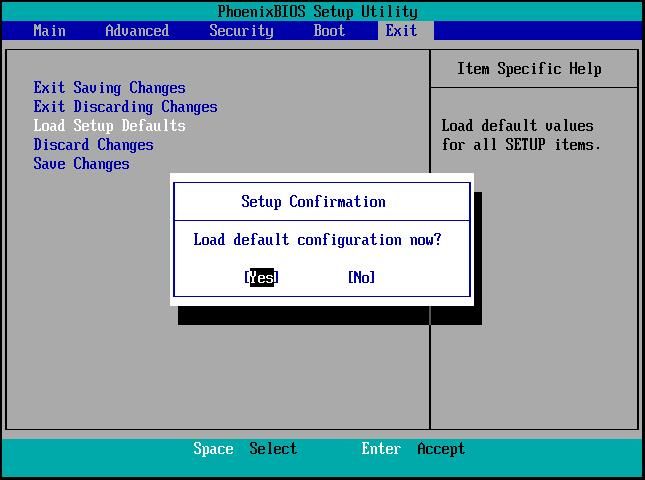
The BIOS includes a configuration interface known as the BIOS Setup, where users can adjust various basic settings such as the system time, boot order, enabling or disabling peripheral devices, changing CPU frequencies, or setting a BIOS protection password. These parameters are stored in CMOS memory and are maintained by the CMOS battery on the motherboard.
2.4 Hardware Initialization
Before the operating system begins operating, the BIOS must initialize and enumerate hardware devices. This ensures that the operating system can correctly detect and communicate with components such as storage drives, USB ports, or network cards right from the startup phase.
2.5 Basic Security
Some BIOS implementations also support basic security features, such as setting passwords for BIOS access or the boot process, in order to prevent unauthorized access. In modern systems, the BIOS (or UEFI) additionally supports Secure Boot and can integrate with a TPM (Trusted Platform Module) to ensure that only trusted boot software is allowed to run—helping protect the system from low-level malware.
3. Structure and Components of the BIOS
The BIOS structure is designed to be compact yet critically important, ensuring that the computer can boot and perform basic communication with hardware. Fundamentally, the BIOS consists of the following components:
3.1 Boot Block
This is the smallest section of the BIOS code, yet it plays an extremely critical role. The Boot Block contains the initial initialization program, ensuring that the system can still start or be recovered even if the main firmware becomes corrupted. It is usually specially protected, read-only, and very difficult to overwrite.
3.2 POST Code Routines
This part contains the code routines responsible for performing the POST (Power-On Self-Test). When the computer is powered on, the BIOS executes these routines to check components such as the CPU, RAM, graphics adapter, and keyboard. If an error is detected, the BIOS sends signals through beep codes or display codes, enabling users or technicians to diagnose the problem more easily.
3.3 Setup Utility
This is the configuration interface that users can access by pressing keys such as Del, F2, or F10 during startup. Depending on the BIOS version, the interface may be text-based or graphical (GUI). Here, users can adjust settings such as system time, boot order, CPU voltage, bus frequency, and security passwords.
3.4 Driver Routines
The BIOS provides low-level driver routines that allow the operating system or boot programs to communicate with basic hardware such as the keyboard, COM ports, storage drives, or the graphics card. These drivers act as a “bridge” until the operating system loads its own dedicated drivers.
3.5 Storage Location
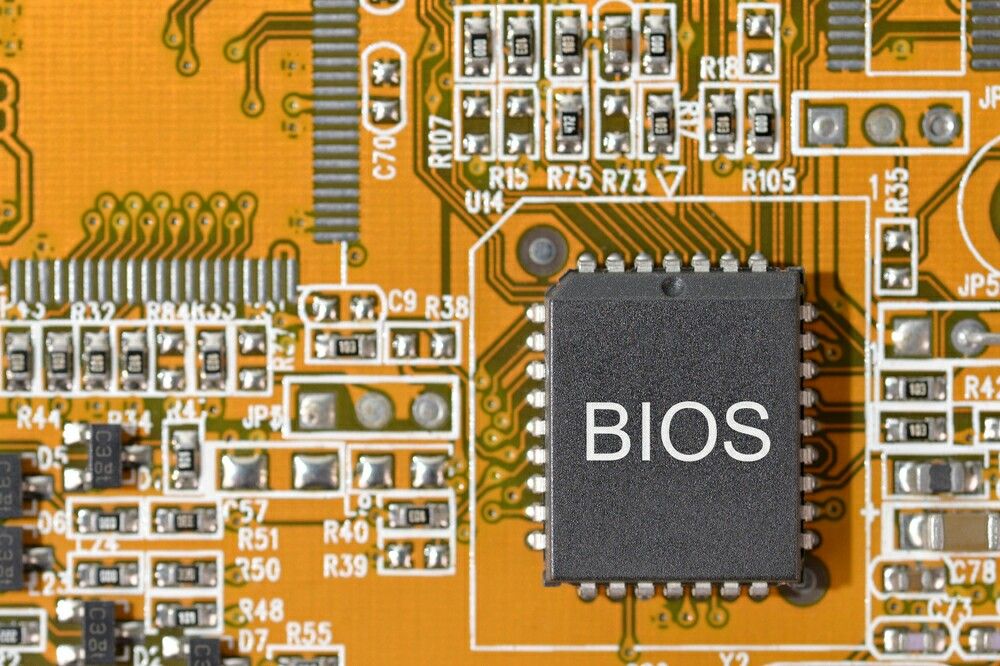
Today, the BIOS is typically stored in a Flash ROM chip (commonly SPI flash) mounted directly on the motherboard. This type of chip allows users to reflash the BIOS – that is, update or replace the firmware to fix bugs, add new features, or support new CPUs without needing to replace hardware.
3.6 BIOS and CMOS
Although they are often mentioned together, the BIOS and CMOS are two different concepts. The BIOS is the program that controls the boot process, while CMOS (Complementary Metal-Oxide Semiconductor) is a small memory area that stores BIOS settings such as date and time, boot order, and SATA mode. In the past, CMOS was maintained by a CMOS battery, but today many motherboards have shifted to using NVRAM or EEPROM, providing more stable storage and reducing dependence on the battery.
4. The BIOS Boot Process
To make it easier to visualize, the computer startup process under the control of the BIOS takes place through a logical and tightly structured sequence of steps. Each stage plays an important role in preparing the system for the operating system to run.
4.1 Power Supply and Basic Hardware Initialization
When you press the power button, the PSU (Power Supply Unit) begins delivering stable power to the entire motherboard. The CPU is immediately awakened and starts executing instructions at a fixed memory address – where the first BIOS code is stored. At this point, the BIOS takes control of the entire boot process.
4.2 POST (Power-On Self-Test)
Immediately after being activated, the BIOS performs POST – an automatic system self-test. It sequentially checks the CPU, RAM, graphics card (GPU), chipset, disk controllers, keyboard, and other essential devices. If an error is detected, the BIOS signals it through beep codes (audible alerts) or displays error codes on the screen, allowing users to easily identify hardware issues.
4.3 Device Initialization and Enumeration
After POST is completed, the BIOS initializes input/output devices such as hard drives, USB ports, network cards, SATA ports, and PCIe controllers. This process allows the BIOS to “enumerate” all devices present in the system, preparing for the next stage of the boot process.
4.4 Finding the Boot Device
Next, the BIOS searches for a valid boot device based on the boot order configured by the user in the BIOS Setup. Typically, this order may be SSD → USB → CD/DVD → Network (PXE).
4.5 Loading the Bootloader
Once a boot device is identified, the BIOS reads the first boot sector (usually the MBR in traditional BIOS systems or an EFI executable in UEFI systems). This bootloader code is then loaded into RAM, ready to take over the boot process.
4.6 Transferring Control
Finally, the BIOS transfers system control to the bootloader. The bootloader is responsible for loading the operating system kernel into memory, setting up the initial runtime environment, and then handing control over to the operating system. At this point, the BIOS has completed its task, and the operating system takes full control of the computer’s resources.
Quick summary of the process:
Power → BIOS Start → POST → Device Initialization → Find Boot Device → Load Bootloader → Transfer to OS Kernel.
This entire process takes only a few seconds, yet it is the “heart” of every computer startup—where the BIOS plays the opening role for all system operations.
5. Common BIOS-Related Issues and How to Resolve Them
During computer usage, the BIOS can sometimes encounter problems that prevent the system from booting or cause unstable operation. Below are some common issues and corresponding troubleshooting approaches, compiled both to clarify the causes and to help you remain calm when facing such situations.
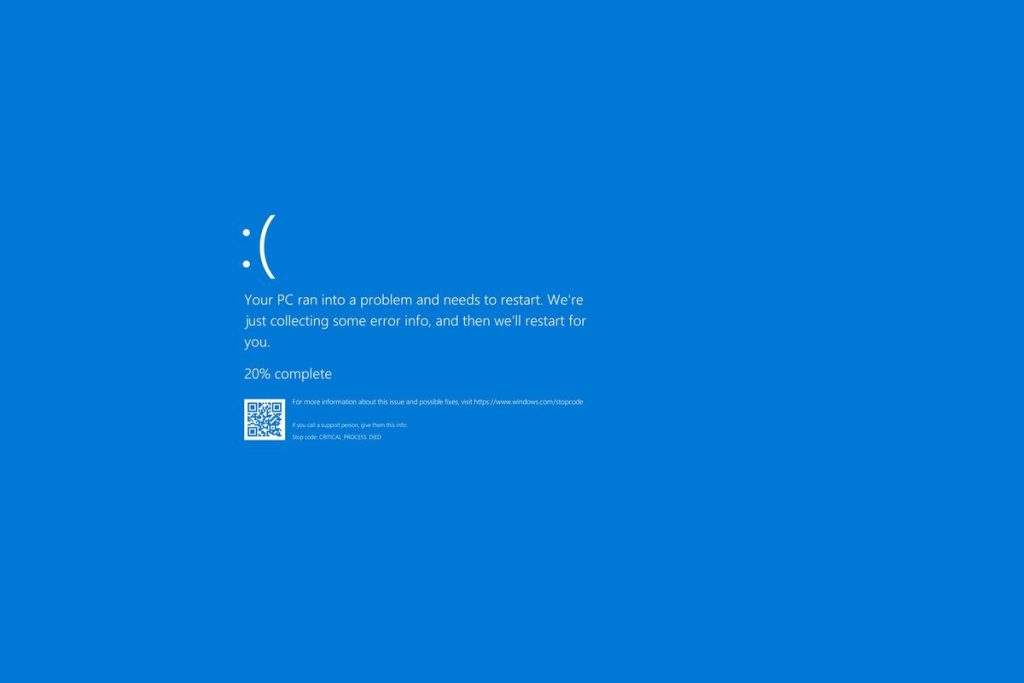
5.1 System Does Not POST / No Video Signal
This is the most common issue: when the computer is powered on, the fans spin but the screen remains black, with no display or startup sound. In this case, you should:
- Listen for beep codes (if any) to identify the faulty component (RAM, GPU, CPU, etc.).
- Reset the BIOS by removing the CMOS battery from the motherboard for 5–10 minutes or by using the CLR_CMOS jumper (if available).
- Reseat the RAM and graphics card, ensuring they are firmly installed in the correct slots.
5.2 BIOS Checksum Error
This message usually appears when the BIOS detects corrupted configuration data, possibly due to a weak CMOS battery, incorrect settings, or damaged firmware.
Solutions include:
- Reset the BIOS to default settings (Load Default Settings).
- Replace the CMOS battery if the system has not been maintained for a long time.
- In serious cases, reflash the BIOS with the official version from the manufacturer’s website.
5.3 Unable to Enter BIOS Setup
If pressing keys such as Del, F2, or F10 does not allow access to the BIOS, try the following:
- Use a different key, as each motherboard manufacturer may use different shortcut keys.
- Disconnect unnecessary peripherals (USB devices, external drives, etc.), as they may sometimes cause boot conflicts.
- Finally, reset the CMOS to restore access to the BIOS.
5.4 BIOS Does Not Detect the Hard Drive
The cause may be related to physical connections or incorrect BIOS settings.
Solutions include:
- Check the SATA/NVMe cables and the drive’s power connection.
- Ensure the storage controller mode (AHCI/RAID/IDE) in the BIOS matches the type of drive you are using.
- Try switching to a different SATA port or updating the drive’s firmware if possible.
5.5 System “Bricked” After a BIOS Update
“Bricked” means the motherboard cannot boot due to a failed BIOS update.
Possible solutions:
- If the motherboard supports Dual BIOS or Backup BIOS, activate the recovery mode.
- Some motherboards feature BIOS Flashback, which allows the BIOS to be reflashed via USB even when the system cannot boot.
- If none of these features are available, contact the manufacturer or an authorized service center for technical support.
Before making deep changes to the BIOS, always record the current configuration, carefully read the motherboard manual, and prepare a recovery plan for the worst-case scenario. The BIOS is a critical foundation of the system, so a cautious approach will help you avoid unnecessary risks.
6. Conclusion
The BIOS is a core foundation that ensures a computer can boot and operate reliably. It performs a series of critical tasks, including initializing hardware, checking system integrity, locating a boot device, and loading the bootloader so that the operating system can take over. Thanks to the BIOS, hardware components – from the CPU and RAM to storage devices and peripherals – are all detected and prepared for operation the moment you press the power button.
Understanding the role, structure, and operating process of the BIOS provides deeper insight into how a computer “wakes up” and begins functioning. At the same time, when boot-related issues occur, knowledge of the BIOS becomes a key tool for diagnosing and resolving problems quickly, helping to keep the system stable and efficient.
7. Reference
[1] D. A. Patterson and J. L. Hennessy, Computer Organization and Design: The Hardware/Software Interface, 6th ed. San Francisco, CA: Morgan Kaufmann, 2021.
[2] A. S. Tanenbaum and T. Austin, Structured Computer Organization, 6th ed. Upper Saddle River, NJ: Pearson, 2013.
[3] B. Brey, The Intel Microprocessors: Architecture, Programming, and Interfacing, 8th ed. Boston, MA: Cengage Learning, 2014.
[4] J. Katz and Y. Lindell, Introduction to Modern Cryptography, 3rd ed. Boca Raton, FL: CRC Press, 2020.[5] Kingston Technology, “Understanding the difference between RAM and ROM,” Kingston Blog, 2023. [Online]. Available: https://www.kingston.com